
Intro
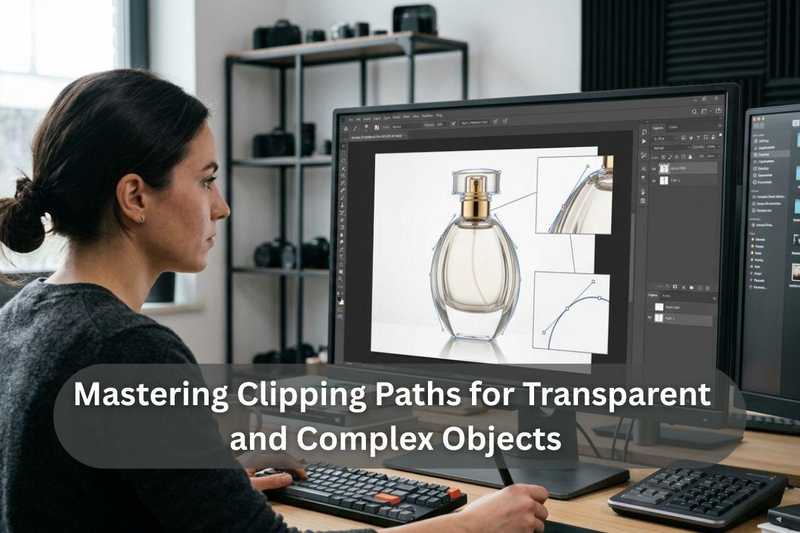
You take hours to take off the background of a product picture. On the surface, the edges appear good. However, as soon as the picture gets on a site or a catalog, something does not work. The object is slightly unnatural or badly carved out. This is the irritating issue that occurs frequently in product editing, and it can most frequently occur when the edges are not treated in the right way.
That is where clipping path services come in. A clipping path is simply an accurate outline of an object created to separate the object and the background to which it belongs. Imagine it is like sketching the object using a digital pen in order to remove the background cleanly.
It seems that the actual test comes with transparent glass, shiny jewelry, head, smoke or soft clothes. Such objects lack the perfectly defined edges and that is where the majority of the edits fail.
In this guide, you are going to know how the professionals are able to produce perfect cutouts despite the most complicated objects.
What Is a Clipping Path And Why Does It Still Matter in 2026?
A clipping path is a vector outline that is drawn around an object in an editing program such as Photoshop in order to isolate the object from the background. Suppose a digital scalpel was used to follow the precise boundary of a product.
Professional photo editing processes continue to use manual clipping paths, despite the current development of more automated processes. Artificial intelligence background removal tools can be quick, but they can be inaccurate, particularly in the areas of complex details.
The All-in-One Platform for Effective SEO
Behind every successful business is a strong SEO campaign. But with countless optimization tools and techniques out there to choose from, it can be hard to know where to start. Well, fear no more, cause I've got just the thing to help. Presenting the Ranktracker all-in-one platform for effective SEO
We have finally opened registration to Ranktracker absolutely free!
Create a free accountOr Sign in using your credentials
Clipping paths are used to provide uniform image quality in many industries:
- Product photography in e-commerce.
- Jewelry photography
- Fashion catalogs
- Advertising campaigns
- Packaging and print design
| Editing Method | Best For | Limitations |
| Clipping Path | Solid objects with defined edges | Time-consuming |
| AI Background Removal | Quick edits and simple products | Struggles with complex edges |
| Layer Mask | Hair, fur, soft edges | Requires more advanced editing skills |
In the case of high value products, precision still beats speed.
Why Transparent & Complex Objects Break Standard Editing Rules
The boundaries of all objects are not always simple. There are also light spots in some products and a border of the background mix.
These things are usually categorized in three segments:
- Semi-transparent Objects - These examples are glass bottles, splashes of water, plastic packaging and crystal ornamentation. Edges are hard to define due to light refraction.
- Organic and Complex Shapes - Thousands of little details that are frequently overlooked by automated tools include hair, fur, feathers, smoke and fabric fringe.
- Multi-layered Objects - Jewelry, rings, chains and decorative patterns have holes and overlapping features that have to take more than one path.
As an example, the process of editing a glass perfume bottle seldom works the first time around. Reflections, highlights and transparency can easily lose the realism when the object is just hard cut out of the background.
Your Toolkit: Setting Up for Precision Before You Start
Professionals clean up their workspace before they draw a clipping path.
Essential Photoshop Tools
Pen Tool - the main tool that is used to create paths.
Paths Panel - manages and stores clipping paths.
Anchor Points - control the shape of the outline
Zoom Tool - essential for edge accuracy
Most editors work at 200% to 400% zoom when outlining complex edges.
Workspace Setup Tips
- Identify edge errors using a dark or neutral background.
- Check the color of your monitor.
- Select a tablet in case you want to have smoother curves.
Hidden Pen Tool Settings
Turn on the Rubber Band feature of the Pen Tool. This is to enable you to preview curves prior to the placement of anchor points.
The All-in-One Platform for Effective SEO
Behind every successful business is a strong SEO campaign. But with countless optimization tools and techniques out there to choose from, it can be hard to know where to start. Well, fear no more, cause I've got just the thing to help. Presenting the Ranktracker all-in-one platform for effective SEO
We have finally opened registration to Ranktracker absolutely free!
Create a free accountOr Sign in using your credentials
Pro Tip: Never work on an original image, always use a duplicate so that you do not alter the original.
Step-by-Step Guide to Creating a Flawless Clipping Path
It is the essence of workflow that professionals devise in outlining products.
Step 1: Image Preparation
Begin with resolving the image resolution. The images of the products must be of a minimum of 300 DPI so that they can be edited effectively.
Before you put your first anchor point, zoom in to 200%.
Step 2: Place the First Anchor Points
Begin on a straight line rather than on a corner.
Locate anchor points at strategic points. The lesser the points, the smoother the curves.
Step 3: Handle Curves with Bezier Handles
Curves are created with natural shapes using direction handles. The one-third rule is also helpful, meaning that to achieve a balanced control, control handles should be placed on the curve in the ratio of one-third.
Step 4: Navigate Tight Corners
Alt/Option click on reaching sharp edges to break handle direction. This gives the succeeding curve an independent movement.
Sharp corners are usually better in straight segments.
Step 5: Close and Review the Path
Finish by linking the final point with the initial point.
Then zoom to 100 percent and check the path and the edges should appear natural.
Step 6: Save and Convert the Path
- Enter a distinctive name in the Paths panel.
- Convert it into a selection
- Use background removal or masking when necessary.
This institutional method makes it always accurate.
Advanced Technique: Editing Transparent Objects Without Losing Realism
Clear things need an intermediate solution.
The outer edge of the object should be characterized by a clipping path. However, layer masks are to be used to maintain internal transparency.
In this way, the natural reflections and highlights are preserved.
Screen and Multiply are also some of the blend modes that can be used to create a more realistic light effect.
Another significant detail is shadows. The artificial shadows of a drop tend to appear unnatural hence retaining the natural shadows normally results in better outcomes.
Advanced Technique: Handling Highly Complex Shapes
There is a case when a single clipping path is not sufficient.
Multi-path Editing
Objects that have holes or internal gaps have to have subpaths. For example:
- Rings with gemstones
- Handles on cups
- Decorative lattice designs
Both holes are made as subpaths to the main path.
Very complicated edges like fur or hair are usually clipped and channel-based masking used together.
The trick here is that you should have the appropriate tool to use on each component of the object.
The 7 Most Common Clipping Path Mistakes
The following are the mistakes that usually ruin the images of the product.
-
Too many anchor points
Lines grow jagged and irregular.
Fix: Reduce the number of points used strategically..
-
Too few anchor points
Curves look stiff or angular.
Fix: Only at the points of direction change of curves, add points.
-
Ignoring shadows and reflections
The object looks artificial.
**Fix: **Natural shadows should be preserved with the help of masks.
-
Editing only at 100% zoom
Fine details are missed.
**Fix: **Work at 200–400% zoom.
-
Hard cutting transparent areas
Destroys realism.
Fix: Combine paths with masking.
-
Not closing the path properly
Creates selection errors.
Fix: It is always necessary to reconnect with the starting point.
-
Skipping final review
Minor mistakes manifest themselves in the export.
Fix: Black and white background test.
Pro-Level Tips That Separate Good Edits from Great Ones
There are many techniques of quality control used by professional editors.
- Check edges on active red, black and white background to demonstrate errors.
- When drawing organic shapes use a tablet to get smooth curves.
- Keep a steady quality of path through product catalogs.
- Name path layers descriptively.
Customers can order alternative file formats. Others require a clipping path in a PSD and others use PNG images whose background is transparent.
Knowledge of such requirements enhances efficiency of working.
Clipping Path vs Image Masking
The identification of an appropriate technique is more economical and more effective in terms of yield.
Use clipping paths when:
- The object has clear edges
- The shape is solid
- The background is simple
Use masking when:
- The subject has soft edges
- Transparency is involved
- Details like hair or smoke exist
Combine both methods when:
- It is a solid object with an outside but internal, transparent, shape like a vase made of glass.
The skill of understanding when to employ this or that technique is a symbol of professional editing.
Why Clipping Path Quality Affects E-Commerce Sales
Customer trust is directly related to the quality of the image.
Potential buyers can form their purchase decision within three seconds after viewing a product image, which is a characteristic of online shoppers.
E-commerce apps such as Amazon and Shopify use clean white backdrops, and proper clipping paths are necessary.
Brand identity is also built by consistent product images. Customers will view the brand as more professional as all the images appear polished and uniform.
Badly edited pictures, however, may raise up the rates of returns and decrease the trust of buyers.
Conclusion: Precision Is a Skill Built Through Practice
The ability to draw an ideal clipping path takes time, accuracy and practice. Clear objects, detailed forms, and delicate elements are also difficult to detect even to a professional editor.
However, with a systematic workflow, appropriate tools, and a careful examination of the edges, any type of professional work can be created.
The first step consists of choosing one complicated product image and using the methods described in this guide. With time, you will become better and faster.
In the case of large amounts of images or highly complicated objects, then using clipping path services and professional editing assistance may assist in keeping the quality consistent on large scales.
Frequently Asked Questions (FAQs)
1. What is a clipping path in photo editing?
A clipping path is an accurate vector outline that is used to separate an object in an image editing program.
2. When should you use clipping paths instead of masking?
Clipping paths are the preferred paths to use with objects with well-defined solid edges like products, packaging, and accessories.
3. Why do transparent objects require special editing techniques?
The reflections and light refraction on transparent objects demand a mixture of routes and masking to maintain the appearance of reality.
4. Which industries rely most on clipping paths?
Correct clipping paths are essential to e-commerce, fashion, jewelry, advertising and product photography.
5. What is the biggest mistake beginners make when creating clipping paths?
Having the excess anchor points thus resulting in irregular and unnatural edges.
6. What tool is best for creating a clipping path in Photoshop?
The Pen tool is the best tool that can be used to make a perfect clipping path, as an individual can have a perfect control over the curves and anchor points.
7. How long does it take to create a clipping path for a product image?
Simple objects can be as short as 2-5 minutes whereas complex objects such as jewelry or hair can take much more time based on detailing.
The All-in-One Platform for Effective SEO
Behind every successful business is a strong SEO campaign. But with countless optimization tools and techniques out there to choose from, it can be hard to know where to start. Well, fear no more, cause I've got just the thing to help. Presenting the Ranktracker all-in-one platform for effective SEO
We have finally opened registration to Ranktracker absolutely free!
Create a free accountOr Sign in using your credentials
8. Can AI tools replace manual clipping paths completely?
Simple background removal can be accelerated by using AI tools, but manual clipping paths are still required to be used in cases of precision and expensive objects.
9. What file format is best for delivering images with a clipping path?
PSD, TIFF or EPS formats are the most popular as they allow preservation of the clipping path making it easily used by designers and printers.