Intro
Most WordPress hacks aren’t someone coming after your site. They’re usually automated bots scanning the internet for common weak spots such as an outdated plugin, a weak login, or a setting left open. If your site looks easy to break into, bots may start trying within minutes.
You don't need security engineer skills to protect it. You need a few basic protections that work well together. Lock down key WordPress settings. Add server rules. Keep everything updated. Make backups and monitoring non-negotiable. You'll catch problems early and recover fast, not discover damage weeks later.
This guide stays practical. We start with high-impact basics, then move into deeper hardening.
Common Security Attacks on WordPress Sites {#common-security-attacks-on-wordpress-sites}
Most WordPress attacks follow a familiar pattern. Bots probe common entry points first, then move on to whatever’s easiest to exploit.
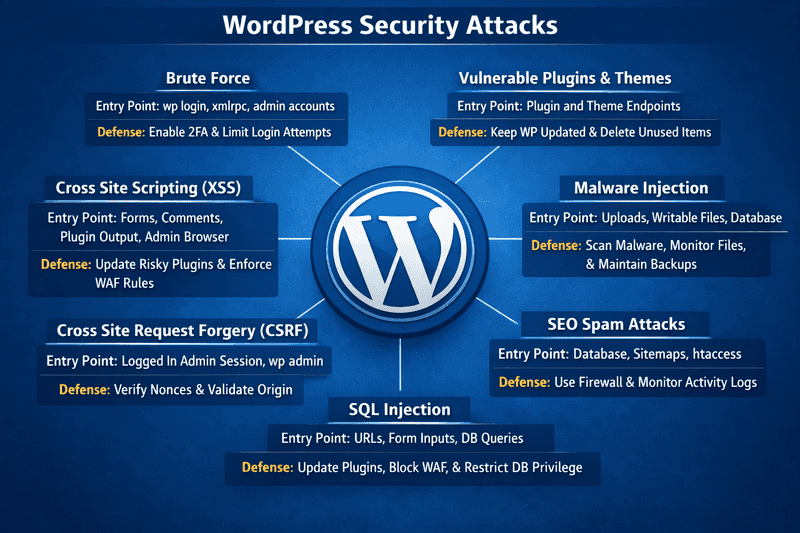
Here are the most common risks you’ll run into on real WordPress sites.
Brute Force {#brute-force}
Brute force works because it’s easy to automate and it still pays off. Instead of guessing one password, bots try thousands of usernames and passwords per minute on the login pages. Credential stuffing is even more effective because it uses leaked credentials from other breaches. If leaked credentials match, it’s instant admin access.
When that’s happening, you’ll see traffic spikes, repeated redirects, and lots of failed logins in plugin or server auth logs. Even without a breach, it burns CPU, slows your site, and floods your logs.
Vulnerable Plugins and Themes {#vulnerable-plugins-and-themes}
WordPress core issues happen, but plugins and themes are usually the real problem. Attackers target them because version detection is easy and exploit code spreads fast.
The All-in-One Platform for Effective SEO
Behind every successful business is a strong SEO campaign. But with countless optimization tools and techniques out there to choose from, it can be hard to know where to start. Well, fear no more, cause I've got just the thing to help. Presenting the Ranktracker all-in-one platform for effective SEO
We have finally opened registration to Ranktracker absolutely free!
Create a free accountOr Sign in using your credentials
Red flags include abandoned plugins, free copies of premium tools, and delayed updates. The impact ranges from remote code execution to database theft and SEO spam injections.
Malware Injection {#malware-injection}
Malware often hides in places that are writable or overlooked. That might be a malicious script dropped into wp-content/uploads/, a plugin file quietly modified with messy PHP, or code injected into the database so it spreads through templates or posts.
Typical signs include mobile-only redirects, mystery admin users, odd cron jobs, unusual scheduled tasks, outbound request spikes, and Search Console or host abuse warnings. It often leads to repeat infections, spam, and blacklisting risk.
SEO Spam Attacks {#seo-spam-attacks}
SEO spam isn’t always visible to humans. Attackers add hidden links, spam pages, or content that only crawlers see. They may inject spam into the database, add unauthorized sitemaps, or tweak .htaccess to serve different content to bots.
The first clues usually show up in search results: weird indexed URLs and sudden traffic drops. Your domain starts ranking for spam, and real pages lose visibility. Cleanup takes longer because the spam is often scattered across the database.
SQL Injection {#sql-injection}
SQL injection happens when a plugin or custom code sends unsafe data to the database. Common signs include weird URL query strings, SQLi alerts in firewall logs, and sudden database load spikes. It can lead to data theft, content changes, and persistent access if attackers alter users or settings.
Cross-Site Request Forgery {#cross-site-request-forgery}
Cross-Site Request Forgery (CSRF) happens when you’re logged into WordPress and a plugin doesn’t run the right security checks. An attacker can trick you into clicking a link that triggers actions like creating users, changing emails, or updating settings.
A red flag is any admin change that happens right after a click and you didn’t mean to do it. Logs can still look normal because it runs through your session, but it can quietly change permissions and lead to a takeover.
Cross-Site Scripting {#cross-site-scripting}
Cross-Site Scripting (XSS) happens when a plugin or theme shows user content without cleaning it first. Stored XSS is worse because the bad code gets saved and can run later, even in the admin area, letting attackers change settings, add users, or install plugins.
You may see strange scripts in posts or settings, login-only redirects, or changes you didn’t make. It can lead to hijacked sessions and a persistent infection stored in the database.
Baseline Security Essentials {#baseline-security-essentials}
Start with the basics that remove easy entry points and make your setup harder to break by default.
Choose a Secure WordPress Hosting {#choose-a-secure-wordpress-hosting}
You can harden WordPress and still get burned by weak hosting. Hosting controls the environment your site runs in, and that environment affects security in a big way.
Here’s what security-focused hosting should include.
- Isolation and safe defaults
If your site lives on a crowded server where accounts can affect each other, you’re starting with extra risk. Look for strong account isolation, sensible file permissions, and a setup that doesn’t leave risky services open by default.
- Server-level protection
A solid host handles firewall rules, bot filtering, security patching, and hardened configurations. You shouldn’t need to log into a server and tweak settings just to make it safe enough.
- Backups and fast restores
When something goes wrong, speed matters. Automatic backups and quick restores save your business.
- Visibility
Access logs, error logs, and performance metrics help you catch brute force noise, PHP issues, and resource spikes before they become outages.
- SSL
SSL certificates encrypt logins and sessions so data stays private in transit. Secure hosting makes certificates easy to set up and auto-rotate to avoid expiration issues.
The All-in-One Platform for Effective SEO
Behind every successful business is a strong SEO campaign. But with countless optimization tools and techniques out there to choose from, it can be hard to know where to start. Well, fear no more, cause I've got just the thing to help. Presenting the Ranktracker all-in-one platform for effective SEO
We have finally opened registration to Ranktracker absolutely free!
Create a free accountOr Sign in using your credentials
On managed WordPress platforms, many protections are already in place to stop common threats before they reach WordPress. For example, Cloudways managed hosting includes platform-level security features like firewalls, automated backups, optional WAF add-ons, and SafeUpdates. Even then, you’re still responsible for updates and access control, but you’re starting from a safer foundation.
Cloudways also offers expert-assisted website migration, and the first migration is included at no cost.
Install an SSL Certificate {#install-an-ssl-certificate}
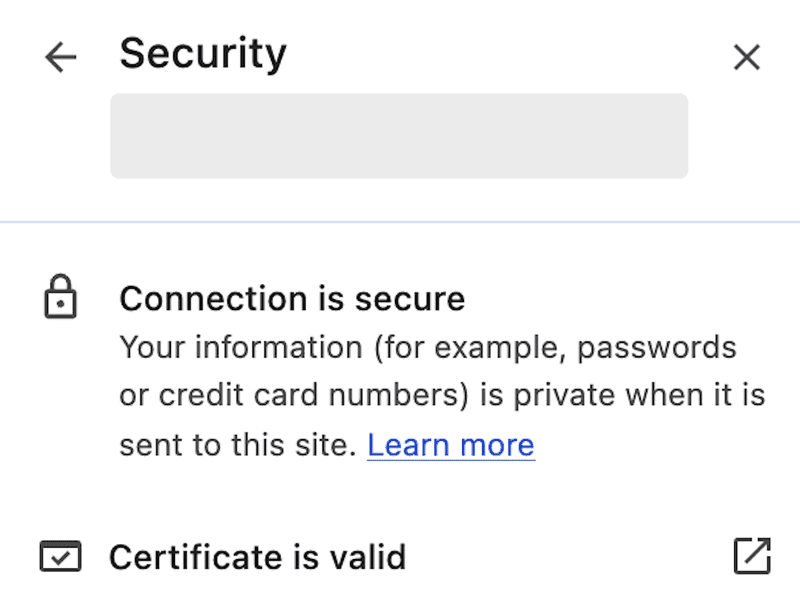
Ever noticed the little padlock icon next to a website’s URL? It means your site is using HTTPS. It tells visitors your site’s connection is secure and their data is safe. Without it, hackers could intercept sensitive details like login info or payment data.
SSL (Secure Sockets Layer) encrypts data between your website and its visitors. It protects that traffic so passwords and customer data don’t travel in plain text. Whether you’re running a blog, store, or portfolio, installing an SSL certificate isn’t optional anymore; it’s essential.
Pick your SSL option
Most hosting providers offer a free SSL option you can enable in a couple of clicks. On Cloudways, you can enable a free Let’s Encrypt certificate right from the platform.
If you need a business-focused certificate or specific validation, you can also buy one from providers like DigiCert or Sectigo.
Generate a CSR
A Certificate Signing Request (CSR) is the request your server sends to the certificate provider. You’ll usually see a Generate CSR option inside your hosting dashboard.
Add the basics like your domain, organization name, and location, then generate the CSR. Your provider uses it to issue the certificate.
Verify domain ownership
Before a certificate is issued, you’ll need to prove you own the domain. Depending on the provider, that usually means one of these: confirming a verification email, adding a DNS record, or uploading a small verification file. Once that check passes, the certificate gets issued.
Install the certificate
Install or upload the certificate in your hosting dashboard. Look for an area like SSL Management or Security Settings, then follow the prompts to attach it to the right domain.
Force HTTPS
After SSL is installed, make sure all traffic goes to HTTPS by default. This ensures visitors always reach the secure version of your site.
You can do this with a plugin like Really Simple SSL, or you can enforce HTTPS for the WordPress admin dashboard with this setting in wp-config.php:
Update internal links
If your site still references old HTTP URLs in settings or the database, browsers may show mixed content warnings. Update those internal links so everything loads over HTTPS.
Beyond security, SSL builds trust and can help with SEO. It’s a quick upgrade that tells visitors you take privacy seriously.
Keep WordPress, Themes, and Plugins Updated {#keep-wordpress-themes-and-plugins-updated}
Updates are security. Most releases fix known holes. Once a vulnerability is public, bots scan for sites still on the old version, and that window is where infections happen.
Update WordPress Core
Core updates often include security fixes, even when the release looks small.
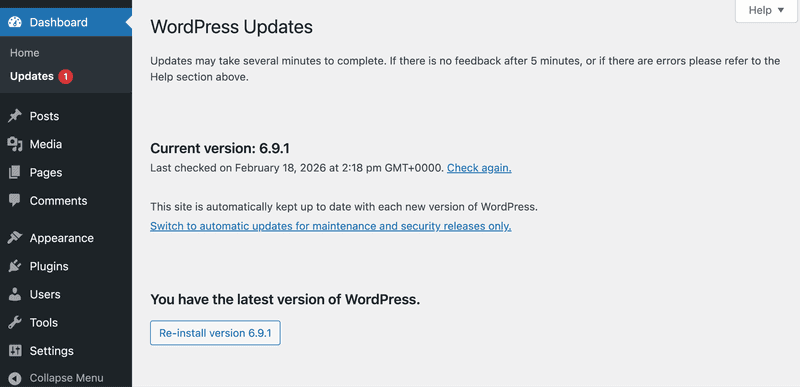
Follow these steps to update the WordPress core:
- Go to WordPress admin dashboard → Updates.
- Under WordPress, click Update Now if an update is available.
- After it finishes, open your site and confirm it loads and you can log in.
A practical update routine
- Enable auto updates for minor versions at minimum.
- Use staging for major updates.
- Block a monthly maintenance window for patching and regression checks.
If you choose a hosting platform like Cloudways, the SafeUpdates feature schedules WordPress core, plugin, and theme updates through a backup and staging workflow before applying changes to production.
Update Themes
Follow these steps to update a WordPress theme:
- Go to WordPress admin dashboard → Updates.
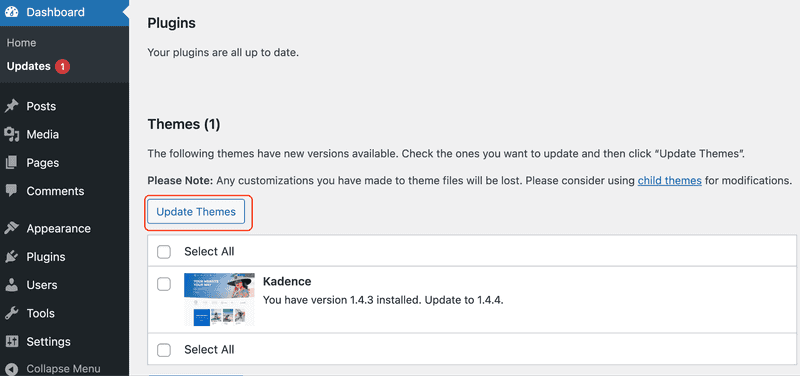
- If theme updates are listed there, select the checkboxes, then click Update Themes.
- After it finishes, check homepage, menus, and key pages load correctly.
Remove unused plugins and themes
Inactive plugins and themes stay on your server. Delete them to cut security risks and shrink your attack surface.
Cleanup checklist:
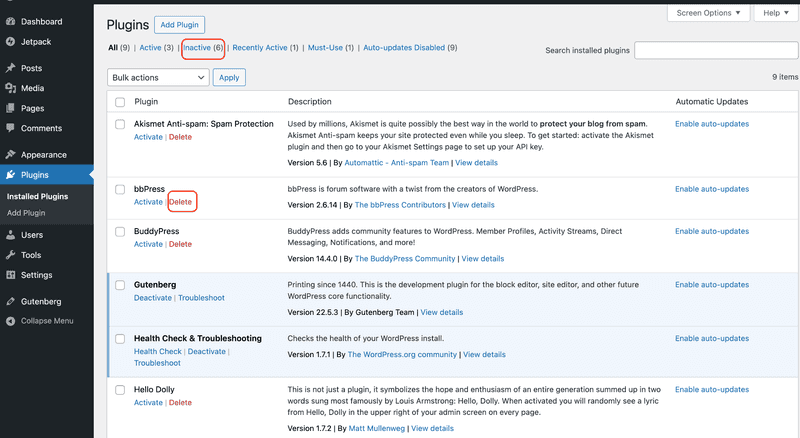
- Delete unused plugins and themes. Deactivation leaves files behind.
- Test removals on staging first, for plugins tied to forms, caching, SEO, or e-commerce.
- Keep only active theme and one backup.
- After cleanup, verify login, forms, checkout, and search work.
- Review your installed plugins and themes monthly.
Follow these steps to delete an unused WordPress plugin:
- In the WordPress admin dashboard, go to Plugins → Installed Plugins.
- Find the plugin you don’t need.
- Click Deactivate. The Delete option appears after this.
- Click Delete and confirm if prompted.
Next, follow these steps to delete an unused theme:
- In the WordPress admin dashboard, go to Appearance → Themes.
- Click the theme you don’t need.
- Click Delete and confirm if prompted.
Choose reputable themes and plugins
Not all plugins deserve trust, even if features looks great. Look for steady recent updates, clear docs, active support, and compatibility with current WordPress versions.
Quick checks before installing:
- Avoid abandoned plugins and themes.
- Avoid nulled plugins and themes.
- Be cautious with off-marketplace downloads unless you trust the vendor.
- Skip anything that hasn’t been updated recently or doesn’t clearly support your current WordPress version.
Practical Security Operations {#practical-security-operations}
These are the regular steps that lower everyday risk, cut down bot noise, and help you catch problems early.
Attackers go after the login page because it’s predictable and always reachable. Lock down the admin entry points so bots hit a wall and stolen passwords don’t turn into instant access.
Use Two-Factor Authentication {#use-two-factor-authentication}
Two-factor authentication shuts down most credential stuffing and credential reuse takeovers. Enabling it for admin accounts blocks logins even when a password is stolen.
To enable 2FA on your WordPress site, choose a reputable 2FA plugin and an authenticator app on your phone. Common 2FA plugin options include miniOrange 2FA, WP 2FA, Wordfence Login Security, and Two Factor.
Enable two-factor authentication:
- In your WordPress dashboard, go to Plugins → Add New.
- Search for a 2FA plugin, then Install and Activate it.
- Open the plugin’s menu from the left sidebar, usually under Security or as its own item.
- Find Two-Factor Authentication or 2FA, then choose Authenticator app.
- Scan the QR code in your authenticator app or enter the setup key.
- Enter the one-time code to confirm, then click Enable or Activate.
- Download the recovery codes and store them in your password manager.
Enforce 2FA for admin roles:
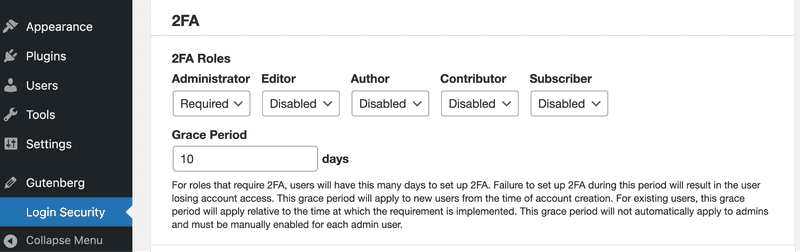
- Open the plugin’s settings, usually under Settings or Security → 2FA.
- Turn on Require 2FA.
- Enforce it for Administrator and Editor roles, and add Shop Manager if you run an ecommerce store.
- Save changes after you’ve enrolled at least two admin accounts on separate devices.
Change the Default Login URL {#change-the-default-login-url}
Most WordPress sites use the same default URLs: /wp-login.php for login and /wp-admin/ for the admin dashboard. Bots know these URLs, so they keep trying them over and over.
Changing the login URL will not stop a determined attacker, but it can reduce automated login spam and brute force attempts.
Follow these steps to change the default login URL in WordPress:
- Go to Plugins → Add New.
- Install a login URL change plugin, then activate it.
- Open the plugin’s settings under Settings or Security.
- Set a new Login URL and Save Changes.
- Log out and test the new URL in an incognito window.
Use a Unique Admin Username {#use-a-unique-admin-username}
** **“admin” is the first guess in every brute force list. Using it gives attackers half of what they need.
Follow these to use a unique admin username in WordPress:
- Go to Users → Add New.
- Create a new user with a unique username. Don’t use your domain name, brand name, or email prefix.
- Set the role to Administrator, then create the account.
- Log out and sign back in with the new admin user.
- Go to Users → All Users.
- Find the old admin account and either change its role to a lower one or delete it. If you delete it, assign its content to the new admin when WordPress prompts you.
Limit Login Attempts {#limit-login-attempts}
Don’t let bots try unlimited passwords. After a few failed attempts, block the IP for a while.
Easy options first
- Install a plugin that handles rate limiting like Wordfence, Limit Login Attempts Reloaded, or Loginizer.
- Enable rate limiting in your host's firewall dashboard if available.
Advanced server config
Nginx rate limiting example (recommended if you control Nginx config):
Add this in your Nginx HTTP context:
Then add a limit for the login endpoint inside your server block:
Tip: Increase “rate” or “burst” if legitimate users get blocked. Test thoroughly.
Use Strong Admin Passwords {#use-strong-admin-passwords}
Admin passwords don’t need to be memorable. They need to be hard to guess. Use a password manager to generate long, random passwords, and make sure each admin account has its own unique one. That way, if one service gets breached, your WordPress admin access doesn’t go with it.
Configuration tips:** **
- Disable password reuse in your organization policy if you can.
- Change admin passwords immediately when a team member leaves.
Follow these steps to change an admin password in WordPress:
- Go to Users → All Users.
- Edit the admin user.
- Click Set New Password, then Update User.
Use Recommended WordPress Security Plugins {#use-recommended-wordpress-security-plugins}
Security plugins won’t solve everything, but they can give you quick protection and much better visibility. You’re looking for logs you can actually use when something looks off.
A good security plugin includes:
- File integrity monitoring to spot unexpected changes
- Login protection and 2FA enforcement
- Malware scanning with a clear cleanup and recovery path
- Alerts and audit logs you can actually review
- Basic firewall rules
Once you know what you’re looking for, install one reputable plugin like Wordfence, Sucuri, or All In One WP Security. These tools add login protection, file change detection, and logs, and they can block a lot of common exploit noise, including brute force attempts.
Follow these steps to install a WordPress security plugin:
- Go to Plugins → Add New.
- Search for the security plugin.
- Click Install Now, then Activate.
- Open the plugin from the left sidebar and run its setup wizard, if it has one.
Setup tips:
- Use one main security plugin to avoid conflicts and duplicates.
- Turn off features you will not use, especially heavy scans on busy sites.
- If your host offers rate limiting or blocking, use that for brute force protection when possible.
Troubleshooting:
- If you get blocked from WordPress admin, check the firewall rules and reduce strict mode first.
- Whitelist your IP so you do not lock out your own team.
- Review the logs before disabling protection so you can see what triggered the block.
Use a Firewall and Malware Scanning {#use-a-firewall-and-malware-scanning}
Firewalls stop attacks before they reach WordPress. Malware scans then check your files and database for tampering.
If you don’t control server config, use your host’s firewall dashboard or a security plugin like Wordfence or Sucuri to rate limit logins and throttle or block XML-RPC.**
Firewall setup
Use layers. WAF at the edge, server rules for abusive traffic, and malware scans for cleanup.
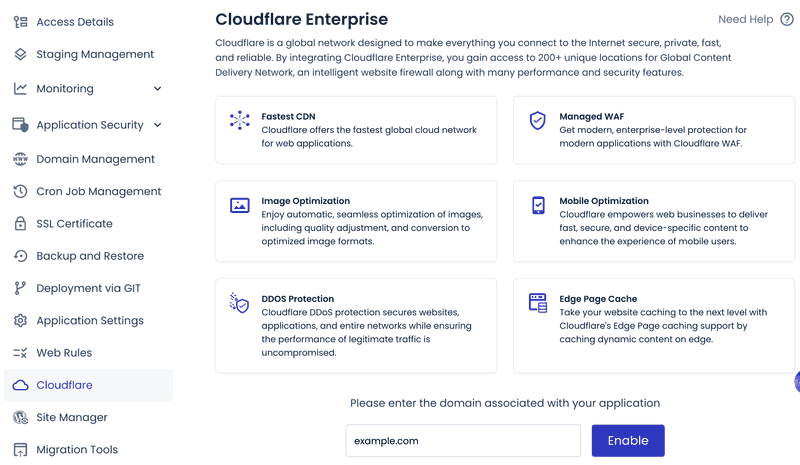
On managed platforms, you can enable built-in Web Application Firewall with IP or country blocking. For example, Cloudways offers optional Cloudflare Enterprise add-on for edge filtering and bot protection.
Malware scanning
Scan for unexpected file changes and database injections (spam links, hidden scripts).
Schedule regular checks for:
- File modifications and unknown PHP in wp-content/uploads
- Database spam or injected code
- Suspicious cron jobs and outbound connections
Cloudways provides a Malware Protection add-on powered by Imunify360 for server-level scanning and automated cleanup.
Follow these steps to clean malware from WordPress:
- Enable maintenance mode.
- Identify entry point (vulnerable plugin, weak credentials).
- Rotate all secrets (admin/DB passwords, salts, SSH keys).
- Restore from clean backup.
- Patch root cause before going live.
Advanced Technical Hardening {#advanced-technical-hardening}
Advanced technical hardening is where you tighten your WordPress setup beyond the basics. These steps focus on configuration, server controls, and access policies that reduce exposure and limit damage if a login or plugin gets compromised.
Secure the wp-config.php file {#secure-the-wp-config-php-file}
The wp-config.php file contains database credentials and secret keys. Treat it like a key vault.
Set strict permissions using the following command:
chmod 400 wp-config.php.
This blocks other users and processes from reading or modifying the file. Use 440 if your web server needs group read access.
If the site breaks with 400, switch to 440 and make sure group ownership matches what your web server runs as.
For extra protection, if your setup allows it, move wp-config.php one level above the web root. WordPress will still load it automatically.
Limit user roles and permissions {#limit-user-roles-and-permissions}
Assign users only the permissions they need (least privilege principle). This stops a hacked account from taking over your entire site.
Follow these steps to limit user roles and permissions in WordPress:
- Go to Users → All Users.
- Click the user you want to review.
- In the Role dropdown, choose the lowest role they need, for example, Subscriber, Contributor, Author, or Editor.
- Click Update User.
Repeat for every account with Administrator and demote anyone who doesn’t need it. Remove or disable dormant accounts that no one uses anymore.
If you need special access, use custom roles and review capabilities before assigning them. Audit roles every quarter and remove unnecessary admin access. This limits what an attacker can do with a stolen login.
Disable file editing from the dashboard {#disable-file-editing-from-the-dashboard}
Disable the built-in theme and plugin editor. This way, a compromised admin account can’t quickly drop malicious code into your site files.
Follow these steps to disable file editing from the WordPress dashboard:
- Connect to your site using SFTP or your host’s file manager.
- Edit wp-config.php in the WordPress root and add:
- Save the file.
- Check Appearance in WordPress admin. Theme Editor disappears. Plugin Editor vanishes too.
If your team relies on dashboard edits, move that workflow to Git-based deploys or SFTP with restricted accounts.
Disable XML-RPC {#disable-xml-rpc}
XML‑RPC is a common entry point for brute force attacks and pingback abuse. Block it at WordPress or server level.
Option A: Disable in WordPress
- Add the following to functions.php or custom plugin:
- Save the file.
- Open the xmlrpc.php endpoint in your browser by visiting https://yourdomain.com/xmlrpc.php
You’ll see a generic XML-RPC message, but XML-RPC requests won’t work anymore.
This disables XML-RPC at the WordPress layer. The xmlrpc.php endpoint can still be hit, so for full protection and to reduce load, block it at the web server or WAF.
Option B: Block at the web server layer**
Blocking XML-RPC at the server is the strongest option because it stops requests before PHP runs.
Nginx:
- Open your site’s Nginx config file for the domain.
- Add a rule for xmlrpc.php in the server block.
- Reload Nginx.
Apache:
- Edit your site’s Apache config or .htaccess if allowed.
- Add the xmlrpc.php block rule.
- Reload Apache.
This stops requests from ever reaching WordPress, which reduces load and cuts off common XML‑RPC attack paths.
Note: If the Jetpack plugin or the WordPress mobile app needs XML-RPC, don’t block it completely. Instead, rate limit requests and, when possible, allow access only from trusted IPs.
Backups and Monitoring {#backups-and-monitoring}
Plan for failure. Backups let you recover fast. Monitoring shows what changed.
Back Up Your Website Regularly {#back-up-your-website-regularly}
Backups aren’t optional. They are your emergency exit when an update breaks production, a plugin gets compromised, or a bad deploy trashes the database.
What you want here is to keep a clean copy of your site you can restore fast, without guessing what’s missing.
Manual backup
Follow these steps to back up your WordPress site:
- Install and activate a backup plugin from Plugins → Add New.
- Open the plugin and run Back up now with files and database selected.
- Save it to offsite storage if available.
Automated backup
Most managed WordPress hosts include automatic backups by default, usually taken daily, stored for a rolling retention period, and available as one-click restore points from the hosting dashboard.
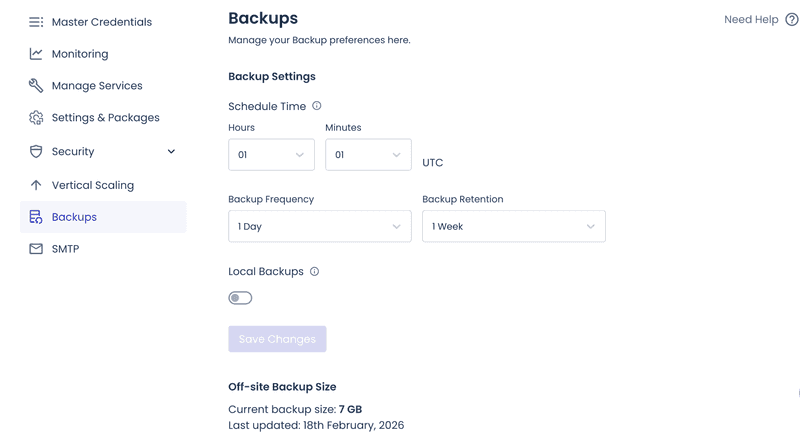
Pick a schedule based on how often your site changes.
- Daily: For active sites with frequent updates, comments, or orders.
- Weekly: For low-change marketing sites.
- Monthly:** **When content rarely changes.
A full backup includes your database, wp-content folder (especially uploads), and configuration files if your setup doesn't recreate them automatically.
Best practices:
- Store backups offsite. A server failure won't wipe them too.
- Keep multiple restore points, not just the latest snapshot.
- Test restores regularly. Untested backups aren't proven. You hope they work when it counts.
If restores drag or fail, the backup is usually bloated. Check backup size growth, often caused by log files or cache directories inside wp-content. Exclude cache directories from backups when your platform can regenerate them safely.
Monitor Your Site {#monitor-your-site}
Hardening helps, but monitoring catches what slips through. Spot issues early. Have logs ready to trace what happened.
Uptime Monitoring
Uptime checks help you spot when the site goes down or changes in a bad way, like a hacked homepage, an update that breaks PHP, or an attack that overloads the server.
Uptime tools like UptimeRobot (generous free tier) or Pingdom handle HTTP and keyword checks on your homepage and key pages.
Practical setup:
- Monitor your homepage and one important page that works without logging in, like pricing, checkout, or a main landing page.
- Use both HTTP status checks and keyword checks so a hacked page that still returns a normal 200 response doesn’t slip through.
Security Alerts
Set alerts for events that signal account takeover, tampering, or drift.
Security plugins like Wordfence or Sucuri alert on login spikes, file changes, and new admin users.
Follow these steps to set up alerts in WordPress:
- Go to Plugins → Add New.
- Install and activate a security plugin that supports alerts.
- Open the plugin from the left sidebar.
- Find Alerts or Notifications in the plugin settings.
- Turn on alerts for:
- New admin user creation
- Plugin or theme file changes
- Login spikes or repeated failures
- Critical plugin updates available
- DNS or SSL certificate issues
- Route critical alerts to Slack or PagerDuty. Keep email for low-priority notifications.
Activity logs
During an incident, logs answer the only questions that matter: what changed, when it changed, who changed it, and from where.
Practical setup:
- Log admin actions like user creation, plugin installs, and settings changes.
- Keep logs long enough to investigate slow-moving compromises.
- Pair activity logs with server access logs so you can correlate IPs and user agents.
Follow these steps to enable activity logs in WordPress:
- Go to Plugins → Add New.
- Install and activate an activity log plugin.
- Open the plugin from the left sidebar.
- Turn on logging for admin actions, like user creation, plugin installs, and settings changes.
- Set how long to keep logs, then save.
- If available, enable log export or forwarding to external storage.
If logs grow too fast, reduce the volume without losing the signals you’ll need later.
- Lower verbosity for non-critical events.
- Rotate logs aggressively.
- Offload to external log storage when available.
Final thoughts {#final-thoughts}
WordPress security usually breaks down for simple reasons. Small gaps stay open too long: missed updates, weak passwords, or too much admin access.
If you do just one thing, make it consistency. Update WordPress core, themes, and plugins on a regular routine. Enforce 2FA on admin level accounts. Use long, unique passwords and avoid obvious usernames. Keep HTTPS on every page so logins, sessions, and form data stay encrypted.
Once the basics are in place, add extra protection. Use a firewall to block bad traffic before it reaches your site. Run malware scans and file change monitoring so you can spot issues early. Keep backups offsite, retain multiple restore points, and test restores so recovery is predictable.
With these in place, your WordPress site is harder to compromise, easier to monitor, and quick to restore if something goes wrong.
Frequently Asked Questions {#frequently-asked-questions}
1. Is WordPress secure?
Yes, WordPress is secure when you follow basic practices: keep core, themes, and plugins updated; use strong unique passwords and 2FA for admins; pick hosting with isolation and firewalls; run regular backups.
2. Does WordPress have built-in security?
Yes. WordPress core ships with solid basics like roles and permissions, protection around admin actions, secure password hashing, and regular security releases. Most real-world compromises come from outdated plugins and themes, weak credentials, or misconfigured servers, not from a default core install that’s kept updated.
The All-in-One Platform for Effective SEO
Behind every successful business is a strong SEO campaign. But with countless optimization tools and techniques out there to choose from, it can be hard to know where to start. Well, fear no more, cause I've got just the thing to help. Presenting the Ranktracker all-in-one platform for effective SEO
We have finally opened registration to Ranktracker absolutely free!
Create a free accountOr Sign in using your credentials
3. Has my WordPress site been hacked?
Watch for obvious red flags like unexpected redirects, new admin users you didn’t create, theme or plugin files changing without a deploy, odd scheduled tasks, and sudden login spikes. Check your security plugin logs and server access logs. If you use Google Search Console, look for warnings and unfamiliar indexed URLs.
4. How do I make my WordPress site HTTPS?
Install the SSL certificate in your hosting dashboard. Then update your WordPress Home URL and Site URL to HTTPS and force HTTPS for the admin area and front end. If you see mixed content warnings, replace hardcoded HTTP links in the database and theme assets. If you use a proxy or load balancer, make sure WordPress recognizes the original request as HTTPS to avoid redirect loops.