Intro
Making videos and photos used to take hours of work and expensive software. You can now use a free AI Video Generator to make high quality clips without any technical skills. These tools take your text and turn it into moving images that look professional. You do not need to be a filmmaker to get great results anymore.
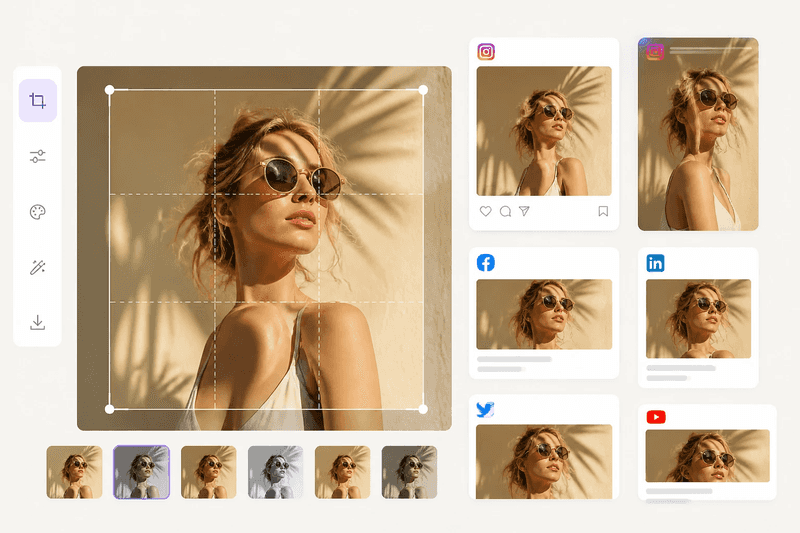
If you have photos that need a quick fix, you can use a free AI image editor no sign-up needed to get the job done. You just upload your file and let the software handle the hard parts like removing backgrounds or fixing colors. This saves you time because you do not have to create an account or provide an email address.
Step by Step Guide to Creating AI Videos
Creating a video with artificial intelligence is a straightforward process. You start by deciding what you want to show in your clip. This could be a landscape, a person talking, or an abstract animation. The AI needs a clear instruction to produce the best result.
Step 1: Access the Platform
Open your web browser and go to the video creation site. You will see a box where you can type your instructions. This box is where you put your prompt. A prompt is just a sentence describing what you want the video to look like.
Step 2: Write Your Prompt
The All-in-One Platform for Effective SEO
Behind every successful business is a strong SEO campaign. But with countless optimization tools and techniques out there to choose from, it can be hard to know where to start. Well, fear no more, cause I've got just the thing to help. Presenting the Ranktracker all-in-one platform for effective SEO
We have finally opened registration to Ranktracker absolutely free!
Create a free accountOr Sign in using your credentials
Be as descriptive as possible when you write your prompt. Instead of saying a dog, you should say a golden retriever running through a green park at sunset. The more details you give, the better the AI can match your vision. You can include details about the lighting, the camera angle, and the mood of the scene.
Step 3: Choose Your Settings
Most tools allow you to pick the shape of your video. If you are making a video for a phone, choose the vertical setting. If you are making a video for a computer screen or a television, choose the wide setting. You might also be able to choose how long the video lasts.
Step 4: Generate the Video
Click the button to start the generation process. The AI will take a few moments to process your request. It is building the video frame by frame based on your text. You will usually see a progress bar that tells you how much time is left.
Step 5: Review and Download
The All-in-One Platform for Effective SEO
Behind every successful business is a strong SEO campaign. But with countless optimization tools and techniques out there to choose from, it can be hard to know where to start. Well, fear no more, cause I've got just the thing to help. Presenting the Ranktracker all-in-one platform for effective SEO
We have finally opened registration to Ranktracker absolutely free!
Create a free accountOr Sign in using your credentials
Once the video is ready, play it to see if you like it. If it looks good, you can download it to your device. If it is not quite right, you can change your prompt and try again. You might want to add more words to describe the movements or the colors.
Step by Step Guide to Editing Images with AI
Editing images is now faster than ever because the AI does the heavy lifting. You do not need to use brushes or complicated layers to fix a photo. You can perform complex tasks with just a few clicks.
Step 1: Upload Your Image
Start by selecting the photo you want to change. You can drag the file from your computer folder directly into the browser window. The tool will load the image and show it on your screen.
Step 2: Select the Edit Type
Decide what you want to do with the photo. You might want to remove a person from the background or change the color of the sky. Most AI editors have specific buttons for these tasks. You can choose to upscale the image, which makes it larger and clearer without losing quality.
Step 3: Use the AI Brush or Tool
If you want to remove an object, you can use a brush to highlight it. The AI will look at the pixels around the object and fill in the space so it looks like the object was never there. This is much faster than trying to clone the background manually.
Step 4: Adjust the Results
After the AI finishes the edit, look closely at the edges. Sometimes you might need to run the tool a second time to get a perfect finish. You can also adjust the brightness or contrast to make the new parts of the image blend in perfectly.
Step 5: Save Your Work
When you are happy with the edit, click the save button. You can usually choose the file format, such as JPG or PNG. Since there is no sign up required, you can just grab your file and go.
Tips and Best Practices for AI Content
To get the best results, you need to understand how these tools think. They use patterns they learned from millions of other images and videos. If you give them clear patterns, they produce better work.
Use Simple Language
Do not use complicated words in your prompts. Use strong verbs and clear nouns. If you want a bright scene, use words like sunny or glowing. If you want a dark scene, use words like moody or nighttime.
Think About Composition
When you edit an image, think about where the main subject is located. AI tools work best when the subject is clear and not overlapping with too many other things. If you are removing a background, try to use a photo where the subject stands out from the back.
Experiment with Different Prompts
You will rarely get the perfect video on your first try. It is okay to experiment. Try changing one word at a time to see how it affects the result. You might find that adding the word cinematic or high definition changes the whole look of the video.
Keep Videos Short
AI video tools are currently best at making short clips. If you need a long video, it is better to make several short clips and join them together using a basic video editor. This keeps the quality high and prevents the AI from making mistakes over time.
Check the Lighting
When you edit a photo, make sure the lighting matches. If you add an object to a photo, the shadows should go in the same direction as the other shadows in the picture. AI is good at this, but a quick human check ensures it looks real.
Common Mistakes to Avoid
Many people make the same errors when they start using AI for content creation. Avoiding these mistakes will help you stand out.
Providing Too Little Information
A one word prompt like cat will give you a random result. You might get a cartoon cat or a black cat when you wanted a white one. Always provide at least five to ten words to describe your vision.
Ignoring the Background
People often focus so much on the main subject that they forget the background. A messy background can ruin a great AI video or photo. Always describe what should be behind your subject to keep the scene clean.
Expecting Perfection Instantly
AI is a tool, not a magic wand. Sometimes it creates weird shapes or blurry spots. These are called artifacts. If you see an artifact, just run the generation again or use an image editor to fix that specific spot.
Using Low Resolution Sources
The All-in-One Platform for Effective SEO
Behind every successful business is a strong SEO campaign. But with countless optimization tools and techniques out there to choose from, it can be hard to know where to start. Well, fear no more, cause I've got just the thing to help. Presenting the Ranktracker all-in-one platform for effective SEO
We have finally opened registration to Ranktracker absolutely free!
Create a free accountOr Sign in using your credentials
If you upload a tiny, blurry photo to an AI editor, the results will not be great. Start with the highest quality file you have. The AI has more data to work with when the original file is clear.
Forgetting to Save
Since many of these tools do not require an account, they do not save your history forever. If you close your browser tab, you might lose your work. Always download your finished files immediately so you do not lose them.
Conclusion
Creating professional videos and photos is no longer restricted to people with expensive gear. You can use free online tools to turn your thoughts into visual content. By following a simple step by step process, you can generate clips from text and edit photos without even creating an account.
The key to success is practice and clear communication with the AI. Use descriptive prompts and high quality source files to get the best results. As you spend more time with these tools, you will learn how to guide the AI to produce exactly what you need for your projects. Start experimenting today and see how easy it is to build your own digital library of content.