Intro
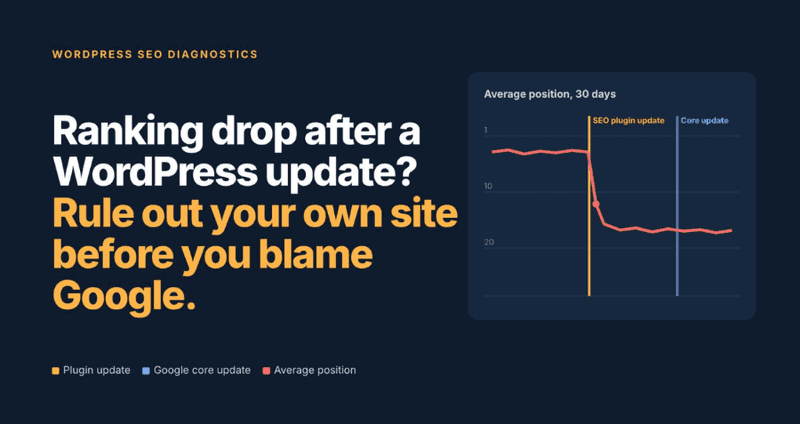
When rankings fall, most people check Google's update history first. On WordPress sites, the cause is often closer to home. Here's how to find out which it was, using your ranking data and a short list of checks.
A client calls. Traffic is down, rankings have slipped, and there's talk of a new Google update. The assumption is usually that Google moved the goalposts.
Sometimes it did. In my experience, though, a good share of the drops I'm asked to look at started on the site itself. A plugin updated overnight. A setting changed. A theme stopped outputting something it used to. Google simply noticed.
One accounting firm I worked with blamed a core update for a slide in their service-page rankings. The real cause was a caching plugin update that started delaying all JavaScript, so Googlebot saw pages without their navigation or internal links. I excluded two scripts, and the pages recovered over the next month.
I've built websites since 2005 and worked in SEO for more than 18 years, including eight and a half years on the IKEA Australia and New Zealand website. The method below is the one I use. It starts with a simple rule: rule out your own site before you blame Google.
Why WordPress updates can move rankings
Most WordPress updates are harmless. The problem is how many of them happen, and how few people notice.
Updates now happen on their own
Since WordPress 5.5 in 2020, site owners can switch on automatic updates for plugins and themes. Many hosts switch them on by default. A typical small business site can change several times a week without anyone logging in.
A few plugins control how Google sees the whole site
Your SEO plugin decides canonical tags, sitemaps, noindex rules, redirects and structured data for every page. Your caching or optimization plugin decides what HTML and JavaScript Googlebot actually receives. One changed default in either can affect thousands of URLs at once.
It has happened at scale before
In 2018, a bug in Yoast SEO 7.0 meant the setting that redirects media attachment pages to their parent post stopped working on many sites. Thin attachment pages were indexed in large numbers, and some sites lost rankings. Yoast fixed the bug and released a tool to help clear the extra pages from Google's index. It's a useful reminder that even well-maintained plugins can ship a costly mistake.
Step 1: Line up three timelines
Before you change anything, build a timeline. Guessing at this stage usually means fixing the wrong thing.
When did the drop start?
Use daily rank tracking for the exact date. Search Console data lags by a couple of days and averages positions across many queries, so it's better for confirming a drop than for dating it. Note whether the drop happened overnight or slid over a few weeks. That one detail narrows the cause a lot.
What changed on the site?
List every change in the week before the drop. Good places to look:
-
WordPress sends an email after automatic updates. Search your inbox for them.
-
An activity log plugin, such as WP Activity Log or Simple History, records updates, setting changes and who made them.
-
Your host's control panel often shows backups, PHP version changes and server moves.
-
If the site is in version control, the commit history shows code changes to the day.
What changed at Google?
Check the Google Search Status Dashboard for ranking updates and their rollout dates. Core updates can take two weeks or more to roll out, so a drop on day three still sits inside that window.
| Timeline | Where to look | What it tells you |
| Your rankings | Daily rank tracking; Search Console to confirm | The exact start date, and whether the drop was sudden or gradual |
| Your site | Update emails, activity log, host panel, version control | What changed in the days before the drop |
| Google Search Status Dashboard | Whether an update was rolling out, and for how long |
Table 1: Reading the three timelines together.
Step 2: Read the pattern in your ranking data
Ranking data does more than show a drop. The shape of the drop points to the cause. Group your tracked keywords by page type first: pages, posts, products, product categories, and tag or category archives. Problems on WordPress almost always hit a page type, not a random set of keywords.
| What you see | Likely cause on WordPress | Check first |
| Almost every keyword drops overnight | Sitewide noindex, robots.txt block or server errors | Checks 1, 2 and 4 |
| One page type drops, others hold | Template or SEO plugin setting for that post type | Checks 2, 3 and 5 |
| The ranking URL keeps switching to a tag, category or attachment page | Archive or attachment pages competing with the real page | Check 3, plus your archive settings |
| Position holds but rich results disappear | Schema removed or duplicated by a plugin or theme update | Check 6 |
| Drops on mobile only | Theme or caching change affecting the mobile render | Check 5 |
| Old URLs vanish after a rebuild or migration | Redirects or permalinks lost | Check 7 |
| Gradual slide over weeks, during a core update | Google reassessing content quality | Site checks first, then the Google section |
Table 2: Common ranking patterns and what they usually mean on WordPress.
The All-in-One Platform for Effective SEO
Behind every successful business is a strong SEO campaign. But with countless optimization tools and techniques out there to choose from, it can be hard to know where to start. Well, fear no more, cause I've got just the thing to help. Presenting the Ranktracker all-in-one platform for effective SEO
We have finally opened registration to Ranktracker absolutely free!
Create a free accountOr Sign in using your credentials
Figure 1: A first-pass triage for a WordPress ranking drop.
Step 3: Seven checks that rule out your own site
When I take over a WordPress site that's lost rankings at WordPress Developer Sydney, these are the checks I run first, in this order. Together they take about an hour, and they catch most of the site-side causes I see after an update.
1. The search engine visibility setting
Go to Settings, then Reading. If "Discourage search engines from indexing this site" is ticked, WordPress tells search engines not to index the site. It's often left on after a site moves from a staging copy to the live domain.
2. Robots rules on key pages
Open the source of one page from each affected page type and look for a robots meta tag with "noindex". Then check the HTTP headers, because a noindex can also be sent there:
curl -sI https://example.com/your-page/ | grep -i x-robots-tag
While you're at it, open yourdomain.com/robots.txt and make sure nothing important is blocked.
3. Canonical tags and sitemaps
Check that each affected page's canonical tag points to itself, not to the homepage or another page. Then open your sitemap. Since WordPress 5.5, WordPress makes its own sitemap at /wp-sitemap.xml. SEO plugins normally switch it off and replace it, and an update can leave both running or remove page types from the plugin's version.
4. Server errors
In Search Console, open Settings, then Crawl stats. A spike in 5xx errors or "host had problems" around the drop date points to the server or a plugin conflict, not to Google. Your host's error log usually names the plugin involved.
5. What Googlebot actually sees
Run the URL Inspection tool's live test on an affected page and view the rendered HTML. Caching and optimization plugins that combine, delay or remove JavaScript can leave Googlebot with a page that's missing content, menus or internal links. If the rendered page looks thinner than the page in your browser, that's your lead.
6. Structured data
Test a few affected pages in Google's Rich Results Test. Theme and plugin updates sometimes remove schema, or two plugins start outputting duplicate schema at the same time. If you lost review stars or product details in search but kept your position, start here.
7. Redirects and permalinks
Check Settings, then Permalinks, to make sure the URL structure hasn't changed. Then spot-check old URLs from your redirect plugin. A plugin update or migration that drops redirect rules turns working URLs into 404s overnight.
When it really is Google
Sometimes the site checks come back clean, and the drop lines up with a core update. That's worth knowing, because the response is different.
-
Wait for the rollout to finish before you judge the result. Rankings often move around during the update itself.
-
Don't roll back plugins or rewrite pages on a hunch. Changes made in a panic make the next diagnosis harder.
-
Compare the pages that lost ground with the pages that now outrank them. Look at depth, freshness, first-hand experience and how well each page answers the search.
-
Keep tracking daily. Some sites recover partly with the next core update after they improve their content.
Both causes can also be true at once. A site problem that starts during a core update gets blamed on Google every time. That's why the site checks come first, even when the timing looks obvious.
How to stop updates catching you out
You don't need to switch off updates. Old plugins are a security risk, and that's a bigger problem than a ranking wobble. You do need a routine.
-
Leave minor updates on automatic, but update your SEO, caching and page builder plugins by hand, after reading the changelog.
-
Test major updates on a staging copy first. Most good hosts include one.
-
Keep a simple change log with the date, what changed and who changed it. A shared spreadsheet is enough.
-
Set rank tracking alerts by page type, so a drop in one template shows up in days, not at the end of the month.
-
Take a backup before every manual update, and know how to restore it.
My take
Google updates get the headlines, so they get the blame. In my experience, the more useful question after a ranking drop is "what changed on our side?" WordPress makes it easy to change a lot without noticing. A change log and daily rank data turn a week of guessing into an afternoon of checking.
Start with your own site. If it's clean, you'll know Google moved and you can respond calmly. If it isn't, you've just found a problem you can fix today.